



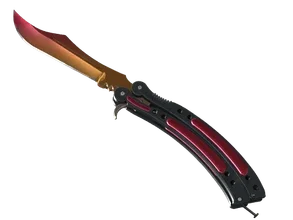
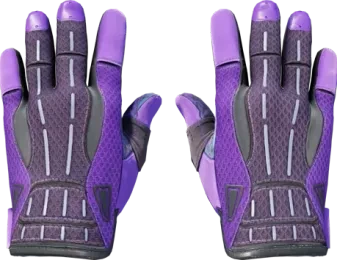
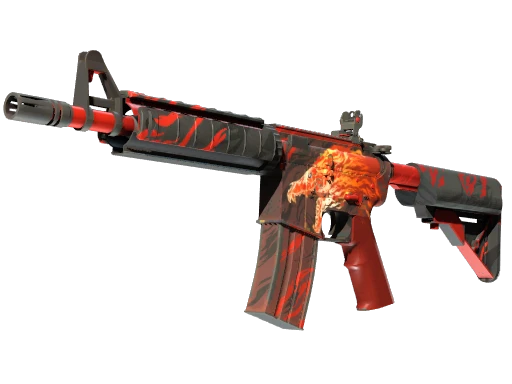
Skin.Club lets you sign in through Steam or Google, deposit funds or eligible CS2 skins, and use an internal Credits balance for case opening and other activities. Its main features are cases, upgrades and case battles, with automated Steam bots handling item transfers. To receive a skin in Steam, you must request its withdrawal from your profile and accept the corresponding trade offer. The important distinction is that depositing, playing and withdrawing are separate processes: Credits are not cash, an item displayed on the site is not yet in your Steam inventory, and cash withdrawals are not available.
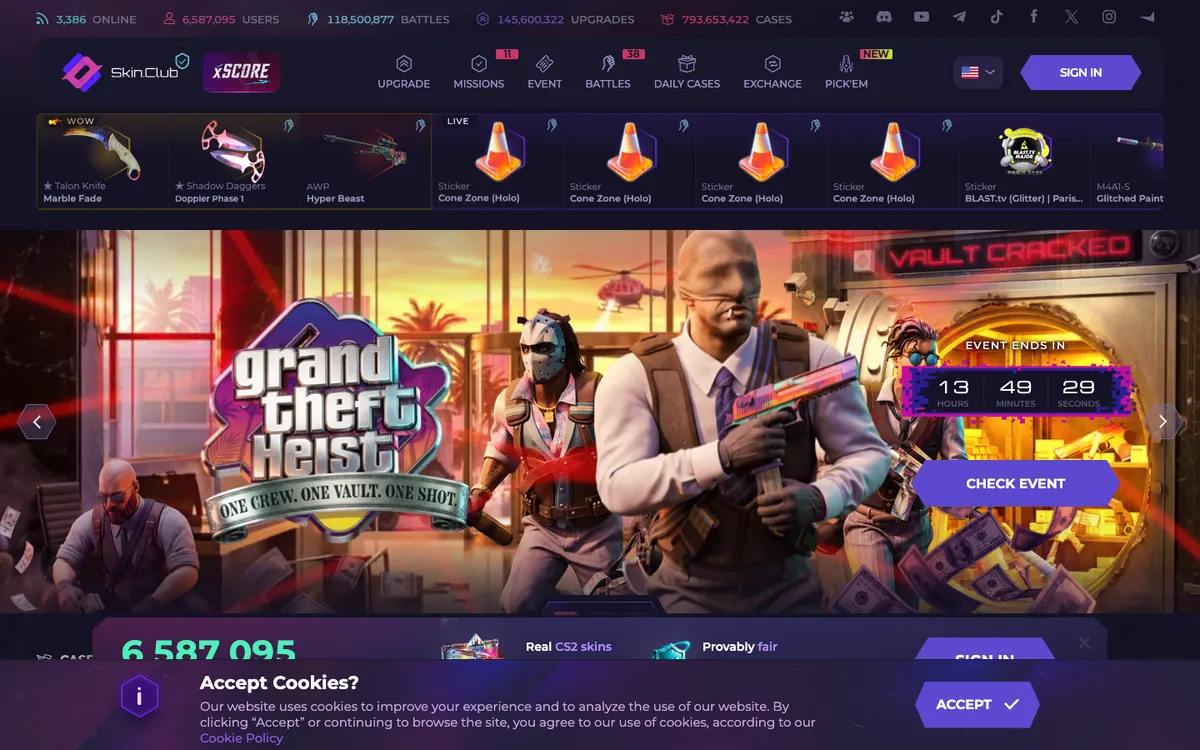
The official Skin.Club home page introduces its CS2 case-opening activities. Treat case artwork and item previews as navigation, not as a promise about what an opening will produce.
Understand what moves between Skin.Club and Steam
Skin.Club is a CS2/CS:GO case-opening service, not a general marketplace covering every Steam game. Its documented flow moves from a payment or skin deposit into site Credits, then into an activity and potentially an item available for withdrawal. Steam handles the actual item transfer. Keeping these stages separate helps you understand what you hold and which service controls the next action.
| Stage | What it represents | What it does not mean |
|---|---|---|
| Payment or skin deposit | The funding transaction you initiate through an available method. | A submitted transaction is not necessarily settled or ready to spend. |
| Credits | Internal tokens used within Skin.Club. | Credits cannot be withdrawn, transferred or exchanged for cash. |
| Item shown in your profile | An on-site item you can select when requesting withdrawal, subject to availability and restrictions. | The item has not necessarily reached your Steam inventory. |
| Accepted Steam trade | The item-delivery stage handled through Steam. | It is not a cash payout or a Steam Community Market sale. |
This also explains why a displayed skin value should not be treated as money you can withdraw. Steam Community Market transactions use Steam Wallet funds under Steam's own rules; Skin.Club Credits are a different balance entirely. If your aim is to obtain a particular cosmetic rather than participate in a chance-based activity, opening cases is not a substitute for choosing that known item directly.
Check eligibility before creating a funded account
Skin.Club requires users to meet its minimum age of 18 and the applicable legal age of majority. Its terms require lawful use, exclude residents of Washington and Nevada in the USA, and allow regional functionality restrictions. Skin.Club has no confirmed licence from Ireland's GRAI. Access to a page does not establish that using every feature is permitted where you live. The terms also prohibit VPNs and proxies, so do not use them to work around an availability restriction.
- Confirm that you meet the age and location rules before sending money or items.
- Use only payment credentials belonging to you; someone else's credentials are not permitted.
- Prepare a Steam account capable of receiving the CS2 items you want to withdraw.
- Choose an entertainment budget you can afford to lose, separate from essential spending.
- Be prepared for identity or payment checks rather than assuming sign-in completes every account requirement.
Verification can be triggered by suspicious activity, a transaction or a payment method. Skin.Club may request your name, government identification, a selfie with ID, payment evidence, address evidence or source-of-funds information. Its terms say an account is permanently blocked if verification establishes residence in a restricted country. Consider these requirements before depositing, not only when a withdrawal is waiting.
Set up sign-in and prepare your Steam trade link
Sign in through the official service
Skin.Club documents Steam and Google sign-in. Start at https://skin.club/en and follow the provider flow shown there. Check the address of any authentication page before entering credentials. Google access should not be confused with Steam delivery readiness: whichever sign-in method you use, check the account's Steam setup before funding it. If you cannot identify the Steam account that will receive items, stop and resolve that first. Our login guide separates sign-in troubleshooting from trading issues.
Copy your trade URL from Steam, not from another person
A Steam trade URL lets another party send an offer to your account. It is not your Steam password and does not, by itself, authorize an item transfer. The following is general Steam preparation, not a claim about fixed Skin.Club profile labels. Follow the current account prompts wherever the service requests your trade details.
- Open Steam's trade-offer settingsUse your own Steam account and locate the trade-offer privacy area, commonly labelled Who can send me Trade Offers?
- Copy your trade URLCopy the complete address from Steam. Do not use a link supplied by another user, a chat message or an unsolicited support contact.
- Check the destination accountMake sure the link belongs to the Steam account where you want your CS2 items delivered. Matching a profile picture alone is not a sufficient check.
- Save it where requestedIf Skin.Club requests the URL, paste it into the relevant account field and follow the displayed instructions. Update saved details if you later regenerate the link in Steam.
Check Steam security and trading restrictions
Steam Guard's mobile authenticator provides additional protection for account access and trade confirmations. A Steam trade hold means Steam retains items before delivery, allowing fraudulent trades to be cancelled. These are platform-level concepts, not Skin.Club fees. Check Steam's current notices for your account rather than assuming a saved trade link means unrestricted trading. Enabling an authenticator does not prove that every restriction has cleared. See Steam trade safety for the checks to make before approving an offer.
Choose a deposit method and understand Credits
Skin.Club lists G2A Pay, credit cards and CS2 skins as payment methods. Check the options actually displayed for your account and region before planning a deposit. The service does not publish a complete fee table, and its terms reserve the right to add fees or change the fee structure. Do not interpret an absent fee schedule as a promise that deposits or withdrawals have no costs.
| Method | What to review before confirming | Important distinction |
|---|---|---|
| Credit cards | The selected payment option, amount charged, Credits received and any checkout terms. | A card deposit funds site activity; it does not create a cash-withdrawal facility. |
| G2A Pay | Whether it is offered in your checkout and the final payment details. | A listed payment system does not establish universal regional availability or a processing deadline. |
| CS2 skins | The exact items leaving Steam, the offered credit value and the matching bot trade. | Skin deposits can be held, and provisional credit may be reversed. |
For a payment deposit, review the final summary before authorizing it, then check the account record instead of relying only on a browser success message. For a skin deposit, inspect every outgoing item in Steam before confirming. Skin.Club says trades are automated by Steam bots; automation does not remove your responsibility to check that the offer matches the transaction you initiated.
Allow for skin-deposit holds and provisional credit
The FAQ says skin deposits can remain on hold for 8 days, with the status shown under Profile > Payments > On Hold. Separately, the terms describe Instant Credit as provisional credit during an 8-day Settlement Period. If Steam Trade Protection reverses the underlying trade, that credit can be reversed too, potentially taking the account balance below zero. A spendable balance is therefore not necessarily a fully settled deposit. Withdrawals can be limited after a reversal leaves a negative balance.
If a payment was a mistake, leave the top-up balance untouched while seeking help. Skin.Club's stated refund condition is a mistaken payment with an unused top-up balance; it is not a general cancellation option after playing. For method-specific questions, use the deposit and withdrawal guide and check the transaction details before committing.
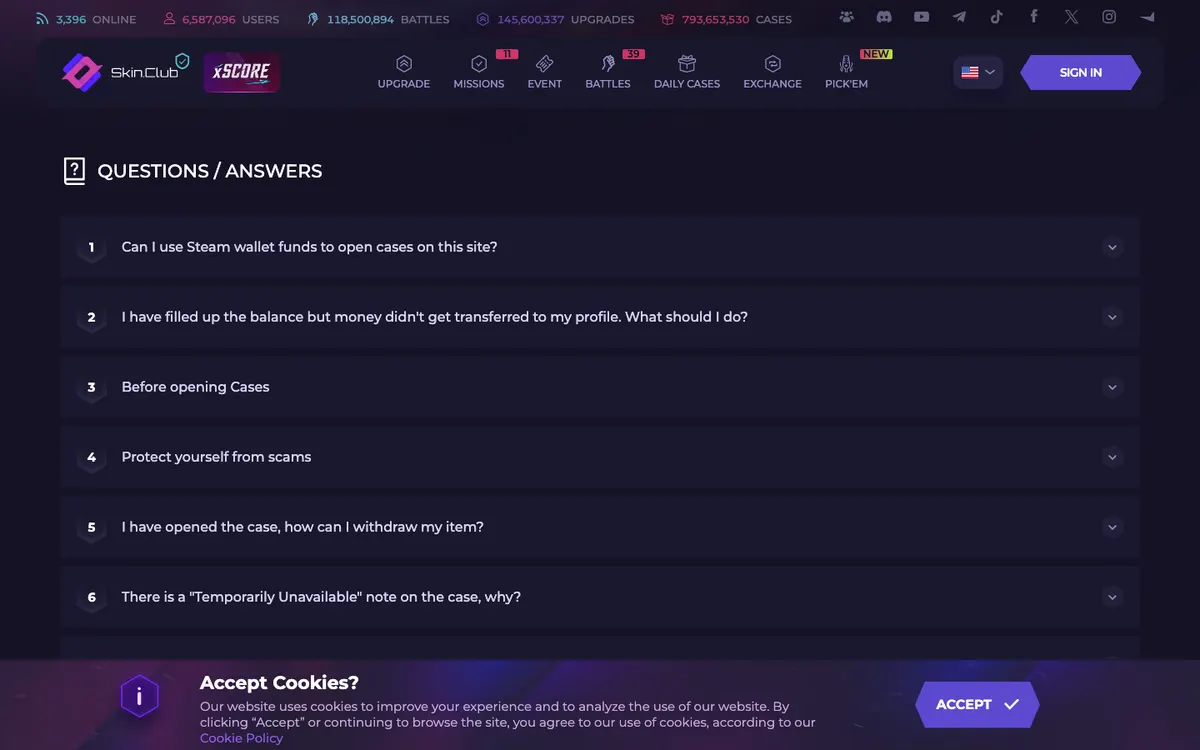
Skin.Club's FAQ covers payments, withdrawals, Steam requirements and verification. Compare any account-specific message with the current instructions before repeating a payment or trade.
Choose the activity that matches your intention
Cases, Upgrade and battles expose you to different decisions and outcomes. They are not interchangeable ways to buy a particular skin. Read the current activity screen before spending, especially when a format changes how items are allocated. The game modes guide provides a focused comparison.
| Activity | Your main decision | What not to assume |
|---|---|---|
| Case opening | Select a case and review its current cost, contents and result information. | The most prominent item in the artwork is not a promised result. |
| Upgrade | Select input skins and a target, then review the displayed success chance. | A higher-value target is not a straightforward item exchange. |
| Case battles | Review the cases, participants, mode and allocation rules before joining. | Every battle format does not necessarily use the same winner rule. |
| Exchange | Inspect the terms and availability shown in your account. | The presence of an exchange feature does not establish a cash marketplace. |
| Daily cases and other features | Check eligibility and the current feature-specific conditions. | Signing in alone does not establish eligibility for every feature. |
Case opening: inspect the case before paying
Skin.Club offers Community cases created by users alongside categories including event, farm, anime, premium, battle, sticker and daily cases. A category name describes the catalogue, not your expected result. Open the individual case page and inspect the current price, possible items and any probabilities shown there. If the information is insufficient for you to judge the purchase, do not proceed.
Confirm the case selection before authorizing an opening. Afterwards, review the result and your profile rather than treating the animation as proof of Steam delivery. A skin's exact identity matters: finish, wear and special variants can distinguish similar-looking items. As general CS2 guidance, rarity describes an item category, while wear relates to its appearance; neither label guarantees a particular resale value.
Skin.Club's Adrenaline indicator is informational. The site describes it as a relationship between the likelihood of desirable skins and case cost, and explicitly says it does not affect or assure an outcome. Do not read it as protection against losing value. Use the cases guide to understand what to inspect on an individual listing.
Upgrade: assess the chance, not just the target skin
In Upgrade, you select input skins, choose a target skin and use the Upgrade control. Skin.Club states that a smaller price gap between the selected inputs and target means a higher probability of success. The interface displays a chance; review it after making your selections rather than inferring it from the target's appearance or a multiplier button.
An upgrade is a chance-based attempt, not a standard trade where a known payment secures a known item. Treat the selected inputs as value at risk and read the current failure terms before confirming. If you want to keep an input skin, do not include it. Repeated attempts do not make the next result owed to you, and raising the target after a loss increases exposure rather than repairing the previous outcome.
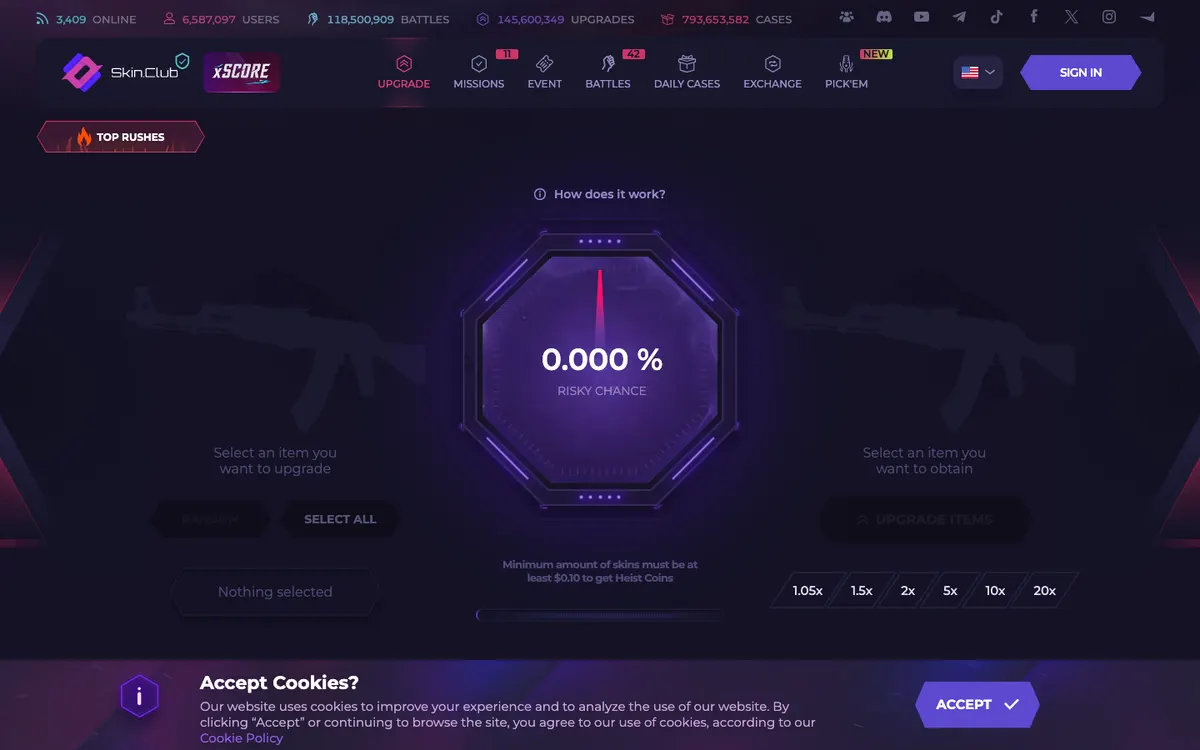
The Upgrade interface separates input selection, target selection and the displayed chance. Review the complete selection before committing.
Battles: read the format before joining
Skin.Club lists Regular, Crazy and Sharing battle modes, with player formats of 2, 3, 4 and 2x2. Its general battle description says that up to 4 players open cases and the player with the most expensive drop receives all the skins. It also allows battles against bots or real players. Do not automatically apply that general winner description to every named variation.
Before entering, check the selected cases, total entry cost, participant arrangement and the displayed mode rules. In particular, establish how the result is decided, how items are allocated and what happens in a tie. If the current screen does not answer those questions, leave the battle unjoined. An item appearing during your part of a battle is not necessarily yours to withdraw; allocation depends on the battle result and rules.
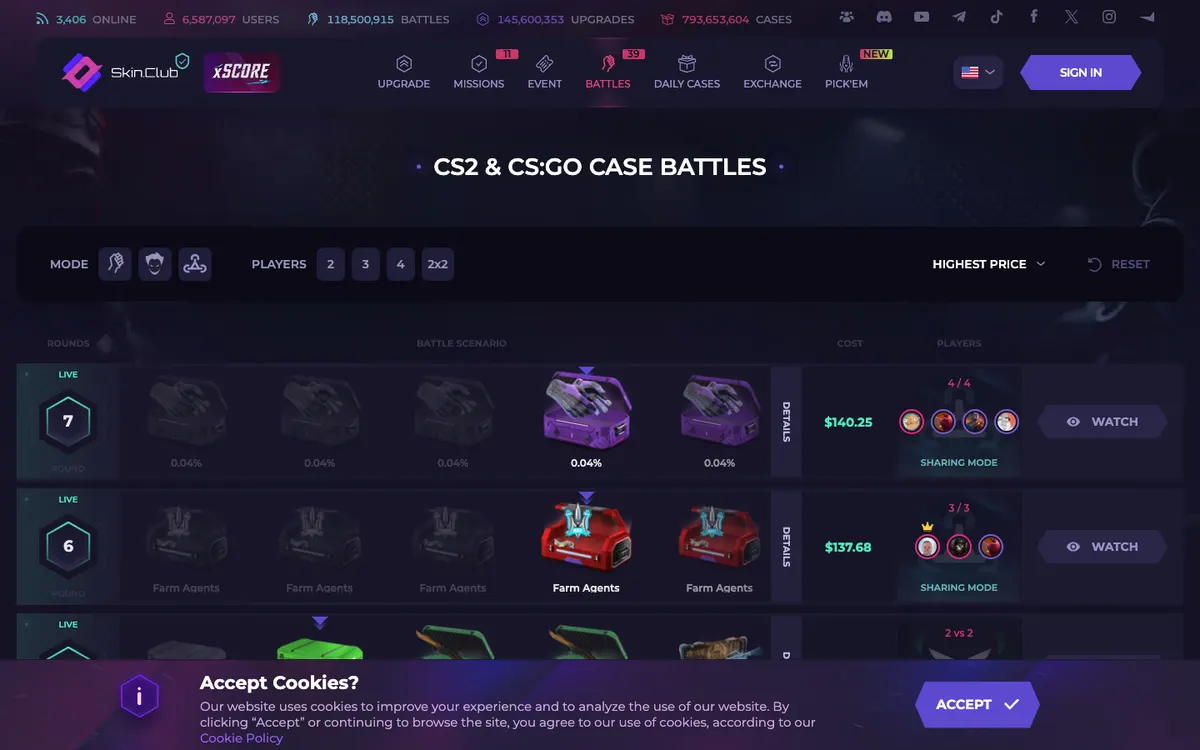
The battle lobby shows available formats. Read the selected battle's details rather than relying on the mode name alone.
Daily cases, missions and exchange have separate conditions
Other documented features include missions, events, exchange and Pick'em. Daily cases have level-based eligibility, and a verified section may apply a hold when verification is requested. Check each feature's current conditions instead of assuming it works like an ordinary paid case. For exchange, inspect the offered items and terms shown to your account; do not infer a commission rate or cash payout from the feature's name. Additional eligibility is not a reason to spend beyond your original budget.
Check results without confusing fairness with value
Skin.Club says its mechanics use Provably Fair technology. It describes access to roll history, seed changes, client and server seeds, and checks on other players' results. These tools concern how outcomes can be checked; they do not remove the house edge, guarantee an attractive item or establish that a case is good value.
In a typical provably fair system, a server-seed hash acts as a commitment before play, while a client seed contributes to generating the result. After the relevant server seed is revealed, the recorded inputs can be checked against the result. That is general background, not a substitute for Skin.Club's own verification instructions. Do not import another site's hash algorithm, roll formula or item mapping and assume it applies here.
- Locate the particular opening, upgrade or battle result in the available history.
- Keep its identifier and the verification inputs shown by the official interface.
- Follow the site's process for the relevant seed and result, including any required reveal.
- Separate a successful verification from questions about price, item availability or withdrawal.
Skin.Club's Provably Fair page provides the result-checking interface. The provably fair guide explains the terminology and the limits of what a verification demonstrates.
Withdraw an available skin to Steam
Skin.Club's documented withdrawal sequence is to select items in your profile, click Take, wait for a Steam trade offer and accept it. The site says withdrawals typically take a few minutes, but that is not a guaranteed delivery deadline. Its terms note that some skins may be unavailable for withdrawal for reasons outside the company's control.
- Check the profile itemIdentify the exact skin and any availability message. Confirm that you are requesting the item you actually want to receive.
- Request withdrawal with TakeUse the documented profile control and note the resulting status. Do not create repeated requests merely because an offer has not appeared immediately.
- Inspect the Steam offerMatch the offer to the withdrawal you initiated. Check the incoming item and both sides of the trade, not just the sender's name or avatar.
- Accept only the correct transferA withdrawal should deliver the requested skin. Reject an unexpected request to give away your own items as a supposed delivery or verification step.
- Confirm receipt in SteamReview the completed trade and inventory status. If Steam displays a restriction or protection notice, read it before attempting another transfer.
Skin.Club does not provide cash withdrawals. Selecting Take is an item-delivery request, not a request to send money to a card or payment account. If an item is unavailable, do not assume that another deposit will unlock it. Check the specific status and contact support when necessary. Negative balances following deposit reversals can also limit withdrawals.
Troubleshoot the stage that is actually blocked
| Problem | Check first | Avoid |
|---|---|---|
| Sign-in succeeds but delivery setup is unclear | The Steam account associated with item delivery and any requested trade details. | Depositing before you know where items will go. |
| Skin deposit is not available to spend | Profile > Payments > On Hold and the recorded transaction status. | Assuming an accepted Steam trade means immediate settlement. |
| Balance becomes negative | Whether a skin-deposit reversal affected provisional Instant Credit. | Treating provisional credit as an irreversible deposit. |
| No withdrawal offer appears | The withdrawal status, item availability, trade details and Steam notices. | Repeated withdrawal requests or additional deposits as a speculative fix. |
| An unexpected offer arrives | Whether you initiated it and whether every item matches. | Trusting a familiar avatar or an unsolicited support message. |
| Verification is requested | The request inside the official account or confirmed support workflow. | Sending credentials or identity documents to an unverified contact. |
Skin.Club publishes help@skin.club and says support operates 24/7; this does not promise an immediate resolution. Prepare the account identifier, transaction or result reference, relevant time, exact error and a screenshot with sensitive details concealed. For a Steam transfer, include the trade status rather than only the skin name. Never include passwords or authentication codes. The support guide explains how to assemble a useful request.
Your checklist before the first transaction
- Eligibility: age, location and payment ownership checked.
- Account: official sign-in used and receiving Steam account identified.
- Funding: final payment terms, Credits and any provisional settlement understood.
- Activity: case contents, upgrade chance or battle rules reviewed before committing.
- Delivery: exact item and Steam offer checked before acceptance.
- Budget: a stopping point chosen in advance, without chasing losses or spending to unlock eligibility.
If you feel pressure to continue after a loss or deposit more than planned, stop rather than changing modes. The responsible play guide covers spending boundaries and warning signs.
Frequently asked questions
No matching questions found.
How does Skin.Club work for a beginner?
Do I need Steam, or can I use Google?
Where do I find my Steam trade link?
Can I withdraw Skin.Club Credits as money?
Why is my skin deposit on hold?
How long does a Skin.Club withdrawal take?
Does provably fair mean I will get good skins?
Can I get a refund if I change my mind?
Explore Skin.Club
Links to Skin.Club's official site are independent and earn no commission. →
This guide is independent and informational. Check Skin.Club's official site for current terms.