



To fund Skin.Club, the documented options are credit cards, G2A Pay and CS2 skins. To withdraw, you select eligible items from your profile and receive them through a Steam trade offer handled by automated bots. The important distinction is that deposits become internal Credits: Skin.Club does not offer cash withdrawals to a card, bank account or crypto wallet. Before paying, check the method available to your account, any displayed charges and the skin-deposit settlement rules. Skin deposits can be held for 8 days, while item withdrawals typically take a few minutes once available.
Know the difference between Credits, skins and cash
The most useful starting point is to separate funding from item delivery. A payment adds Credits to your Skin.Club account. Under the terms, Credits are internal tokens with no real-world value; they cannot be withdrawn, transferred or exchanged for cash. A skin withdrawal instead moves an eligible virtual item from the site to your Steam inventory. Those are different transactions with different checks and possible delays.
| What you hold | What it represents | What you can expect |
|---|---|---|
| Skin.Club Credits | Internal tokens created through deposits | They are not a cash balance and cannot be withdrawn, transferred or exchanged for cash. |
| An eligible Skin.Club inventory item | A skin available through the site | Request delivery to Steam using the profile’s Take control, subject to availability and restrictions. |
| A skin in your Steam inventory | A virtual item held through Steam | Any subsequent trade or sale is separate from the completed Skin.Club withdrawal. |
| Steam Wallet funds | The balance used on the Steam Community Market | Market sales produce Steam Wallet funds, not a refund of Skin.Club Credits. |
Skin.Club focuses on CS2/CS:GO items and offers case opening, upgrades and case battles. It should not be approached as a conventional cash-out marketplace. In particular, a card deposit is not an order guaranteeing a chosen skin. An upgrade involves selecting skins and a target item, but the outcome remains uncertain. If your goal is a specific item rather than a chance-based result, understand that distinction before funding the account. The game modes guide explains the activities separately.
Compare the documented deposit methods
Skin.Club names G2A Pay, credit cards and CS2 skins as payment options. That identifies the documented funding routes, not a promise that every method is available to every account or country. The terms allow geographic restrictions. Use the options actually offered to your account and read the payment details before approving a transaction.
| Method | Published position | Main check before proceeding | Withdrawal to the same method? |
|---|---|---|---|
| Credit cards | Named as a deposit option | Review the payment total, currency, provider details and any stated charges. | No cash withdrawals to cards are offered. |
| G2A Pay | Named as a payment system | Check the options and conditions presented for your account. | No cash withdrawal through this payment route is documented. |
| CS2 skins | Named as a deposit option | Check the selected items, offered Credit value and settlement conditions before confirming the trade. | Skins can be withdrawn to Steam, but this is not a return of the original deposit. |
| Cryptocurrency | Not included in the published payment-method list | Do not assume that a coin, network or deposit address is supported. | Skin.Club does not provide cash withdrawal options. |
What the card and payment logos establish
The footer displays Visa, Visa Secure, Mastercard, Maestro, Mastercard ID Check, Sofort and Interac logos. These are useful payment references, but a footer logo is not a country-specific availability guarantee, a processing-time commitment or evidence of a withdrawal method. If a logo appears publicly but the corresponding option is absent from your payment screen, do not try to bypass the available routes. Ask support whether it is available for your account.
Can you deposit or withdraw crypto?
There is no published cryptocurrency deposit method or supported-network list to rely on. The documented methods are cards, G2A Pay and CS2 skins. Do not interpret the presence of a payment provider as confirmation that crypto is accepted, and do not send funds to an address supplied through an unsolicited message. Ask support to clarify any unfamiliar payment option before transferring anything.
As general payment guidance, cryptocurrency introduces risks beyond ordinary card processing, including theft and uncertainty about value. Those market-wide risks do not establish a Skin.Club feature. For withdrawals, the answer is clearer: Skin.Club provides item delivery to Steam, not a crypto cash-out route.
Complete these checks before adding funds
- Check eligibility first. You must be at least 20 and meet local legal requirements. Skin.Club excludes residents of Washington and Nevada and may restrict other regions or functionality.
- Use your own payment credentials. The terms do not allow payment details belonging to someone else.
- Do not use a VPN or proxy to access a different payment menu or bypass a restriction; the terms prohibit them.
- Decide what you can afford to spend without needing the balance back. Credits cannot be withdrawn for cash.
- Check Steam trading readiness if you intend to deposit or receive skins. Resolve visible account restrictions before starting an item transfer.
- Read the offered conversion and payment total before confirming. Do not infer a fee or exchange rate from an item’s price elsewhere.
Skin.Club permits sign-in through Steam or Google. That login choice does not change the destination of a skin withdrawal: item delivery still takes place through Steam. If account access is the problem, resolve it before paying rather than opening another payment attempt. See the login guide for account-access questions.
How to approach a card or G2A Pay deposit
- Check the method offered to your accountSign in and inspect the available deposit options. Choose only a payment route presented through the site, rather than following instructions from a direct message.
- Review what you will pay and receiveRead the payment amount, currency and Credit allocation. Look for provider charges or conversion information. If the total is unclear, stop and ask before authorising payment.
- Complete the payment provider’s instructionsFollow any authentication request in the legitimate payment flow. Never give a password, card security code or authentication code to someone claiming to assist in chat.
- Keep the receipt and check the resultSave the transaction reference and compare the payment status with your account balance. A payment authorisation and a completed deposit are not necessarily the same stage.
- Investigate an uncertain result before retryingIf the account has not updated, check the provider’s transaction status and contact support. Repeated attempts can make it harder to distinguish separate transactions.
These are practical payment checks, not a promise about a particular checkout layout. Skin.Club does not publish a universal card or G2A Pay processing timetable. The withdrawal statement about delivery taking a few minutes should not be reused as a card-deposit estimate.
Skin deposits: valuation, holds and Instant Credit
A skin deposit exchanges items from your Steam inventory for site Credits. It is not a cash sale. Before accepting, compare the exact items you are sending with the Credit value offered. A valuation on another marketplace does not establish the amount Skin.Club must credit, and the absence of a published fee table makes checking the actual proposal especially important.
- Start the deposit through your account and review the skins selected for transfer.
- Compare the item names, wear and any relevant variants with your intended selection.
- Inspect the Steam offer itself before confirming; a message describing a trade is not the trade.
- Complete only the confirmations requested through the legitimate Steam process.
- Keep the Steam trade record and the related Skin.Club payment entry so support can match the transaction.
What the 8-day hold means
Skin.Club’s FAQ says skin deposits can be held for 8 days and identifies the relevant location as Profile > Payments > On Hold. If the transfer appears there, check that status before treating the deposit as missing. This is a skin-deposit rule; it is not a published waiting period for every card payment or every outgoing item.
The terms separately describe Instant Credit: provisional credit for skin deposits during an 8-day Settlement Period. “Instant” describes the provisional credit, not final settlement. Do not assume that seeing Credits means the underlying trade can no longer be reversed or that every withdrawal is immediately available.
What happens if the deposit trade is reversed?
If Steam Trade Protection reverses the deposit trade, Skin.Club may reverse the provisional credit. The terms say this can leave the balance below zero, and withdrawals can be limited after such a reversal. This is why provisional credit should not be treated as final funds. If a reversal occurs, preserve the Steam history and ask support to explain the balance adjustment before making another deposit.
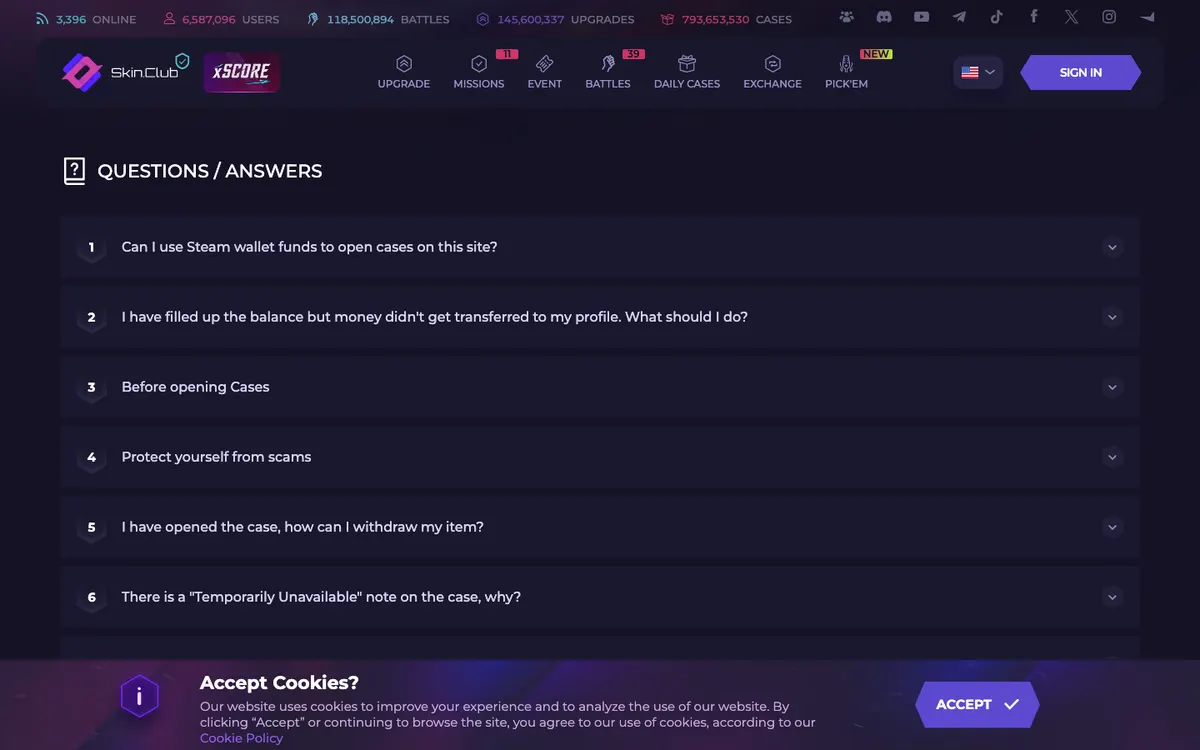
The official Skin.Club FAQ brings together payment, withdrawal, Steam-account and verification questions. For a held skin deposit, its Profile > Payments > On Hold guidance is the relevant starting point.
How to withdraw Skin.Club items to Steam
Skin.Club’s published withdrawal sequence is straightforward: select items in your profile, click Take, wait for a Steam trade offer and accept it. Trades are handled automatically by Steam bots. Some skins may nevertheless be unavailable for withdrawal for reasons outside the company’s control, so an inventory entry is not a promise of immediate delivery.
- Check your Steam destinationMake sure any trade-link information used for delivery belongs to the Steam account where you want the item. Check Steam for visible trading restrictions before requesting it.
- Select the available itemsOpen your Skin.Club profile and choose the skins you intend to withdraw. Read any availability or account-status message rather than assuming every item can be taken immediately.
- Use TakeClick the published Take control for the selected items. Keep any resulting status or reference so you can identify the request later.
- Inspect the Steam trade offerCheck the incoming items against your request. Pay attention to what each side of the offer sends; do not accept unexpected outgoing items simply because the sender uses a familiar name.
- Accept and verify deliveryAccept the correct offer through Steam and complete any applicable Steam confirmation. Then check the destination inventory and trade history rather than relying only on a notification.
How trade links, Steam Guard and holds differ
As general Steam guidance, a trade link lets another party direct an offer to your account; it is not your password. Steam Guard provides authentication for account access and trade or market confirmations. A Steam trade hold is another concept: Steam holds items before delivery to give the owner an opportunity to stop a fraudulent transfer. These protections should not be confused with Skin.Club’s skin-deposit settlement period. Follow the restriction shown by Steam instead of assuming all delays have the same cause. The trade safety guide explains these checks in more detail.
Check the exact skin, not just the artwork
For CS2 items generally, similar-looking skins can differ in wear, float, pattern and special variants such as StatTrak. Rarity describes an item category; it does not guarantee a resale price. Compare the description of the requested item with the actual Steam offer. If something does not match, pause rather than accepting first and trying to resolve it afterwards. These are general item-inspection principles, not a claim that Skin.Club guarantees particular float values or pattern selection.
Deposit and withdrawal times: what is published
| Transaction or status | Published timing | How to interpret it |
|---|---|---|
| Credit card or G2A Pay deposit | No universal processing time published | Check the provider’s status and your account payment record. |
| Skin deposit on hold | 8 days | The FAQ points to Profile > Payments > On Hold. |
| Instant Credit settlement | 8-day Settlement Period | Credit remains provisional and may be reversed with the underlying trade. |
| Available item withdrawal | Typically a few minutes | This is a typical delivery statement, not a guaranteed deadline. |
| Unavailable skin or verification restriction | No universal completion deadline published | Identify the restriction and ask support what action is required. |
Measure a delay from the stage actually reached. A withdrawal request, a generated Steam offer and an accepted trade are separate events. Likewise, a bank showing a payment entry does not establish that the site has completed crediting it. Recording the latest confirmed stage helps support investigate the right system instead of treating every issue as a slow withdrawal.
Fees, deposit limits and refund conditions
Skin.Club does not publish a comprehensive fee table. Its terms reserve the right to charge additional fees and change the fee structure. That is not a basis for describing deposits or withdrawals as fee-free. A universal minimum deposit, full maximum-limit schedule and standard withdrawal minimum are also not published in the general payment information. Check the conditions presented for the actual transaction; if they are unclear, ask before committing funds or items.
- For a card payment, compare the authorised total with the Credits you will receive.
- For a skin deposit, compare the selected items with the offered Credit allocation.
- Check separately for a payment provider’s charge or currency conversion; do not assume it is a Skin.Club fee.
- Do not use Steam Community Market fees as a substitute for Skin.Club’s terms. They belong to a different service.
The fees guide explains the distinction between a stated fee, an item valuation and payment conversion. Keeping those concepts separate makes it easier to compare what leaves your account with what you actually receive.
A refund is not a normal withdrawal
The terms permit refunds only for a mistaken payment and only when the top-up balance is untouched. This is a narrow condition, not a general option to convert unused Credits into money whenever you choose. If you made a payment in error, leave the balance untouched and contact support with the payment reference and an explanation. Do not spend part of the top-up while expecting the remainder to remain refundable. A refund request is also not a published guarantee of approval or a particular processing time.
Troubleshoot the stage that has stalled
Your card shows a payment but Credits are missing
First establish whether the provider describes the payment as pending, completed, declined or reversed. In general card processing, an authorisation can appear before final completion; that does not diagnose your specific transaction. Compare the reference, amount, currency and time with the site’s payment record. Send support the matching evidence rather than making repeated payments to see whether one works. Never include a full card number, security code or authentication code in an ordinary support message.
The skin left Steam but the deposit is not settled
Open the Steam trade history to confirm which offer completed, then compare it with the Skin.Club payment entry. Check Profile > Payments > On Hold before reporting the deposit as lost. If the trade completed but there is no matching entry, provide the trade reference and item details to support. If the trade was reversed, explain that explicitly: it points to settlement and provisional-credit rules rather than an ordinary missing payment.
You clicked Take but no skin has arrived
Check whether a Steam offer exists before submitting another request. If it exists, inspect its status and any Steam restriction. If no offer exists, look for an item-availability or account message on Skin.Club. A negative balance after a reversal can restrict withdrawals, and some skins may be unavailable. Ask support which condition applies instead of assuming that every delay is a bot failure. Do not send a separate skin or payment to someone claiming it will release the withdrawal.
Verification and the information support needs
Skin.Club may trigger identity checks because of suspicious activity, a transaction or a payment method. Requested information may include your name, government ID, a selfie with ID, proof of payment, proof of address and source of funds. If verification shows residence in a restricted country, the terms provide for permanent account blocking. Check eligibility before depositing rather than assuming verification is only a formality.
For payment help, the published contact is help@skin.club, and the contacts page states that support operates 24/7. That describes availability, not a guaranteed reply or resolution time. Prepare the account identifier, transaction or trade reference, date, method, amount or item names, current status and a concise explanation of what happened. Useful screenshots show the error or status without exposing sensitive credentials.
As a general security precaution, confirm the appropriate secure submission route before sending identity documents. A bot’s display name or avatar alone does not prove that a trade belongs to your request. Never share Steam Guard codes or approve an unrelated trade to satisfy someone claiming to be support. The support guide helps organise an effective request without unnecessary personal data.
Quick checklist before you confirm
- Funding: the documented routes are credit cards, G2A Pay and CS2 skins; do not assume crypto support.
- Balance: deposits create Credits, not a withdrawable cash balance.
- Settlement: a skin deposit can be on hold for 8 days, and Instant Credit remains provisional during its settlement period.
- Delivery: use Take for available items, then inspect and accept the correct Steam offer.
- Costs: check the actual proposal because there is no comprehensive published fee or limit schedule.
- Mistakes: leave an erroneous top-up untouched and contact support rather than spending it.
- Budget: stop if the payment would use money you need elsewhere or if you are depositing to recover earlier losses.
If deposits are becoming difficult to control, pause before another transaction. The responsible gambling guide explains budgeting, warning signs and ways to seek help.
Skin.Club deposit and withdrawal FAQ
No matching questions found.
Can I withdraw money from Skin.Club to my card or bank?
Does Skin.Club accept crypto deposits?
What is the minimum deposit or withdrawal?
Why is my skin deposit on hold for 8 days?
How long does a Skin.Club withdrawal take?
How do I withdraw a skin to Steam?
Are Skin.Club deposits and withdrawals free of fees?
Can I get a refund after depositing by mistake?
Why is my balance negative or my withdrawal restricted?
Explore Skin.Club
Links to Skin.Club's official site are independent and earn no commission. →
This guide is independent and informational. Check Skin.Club's official site for current terms.