





This guide describes Skin.Club’s documented Steam and Google sign-in options and provides general account-security information. Its terms identify those providers as sign-in methods. For an existing account, the same provider and identity may be relevant; matching email addresses do not necessarily connect different accounts. This guide separates Skin.Club’s published rules from general Steam and browser-security advice.
Start with the official address and the right identity
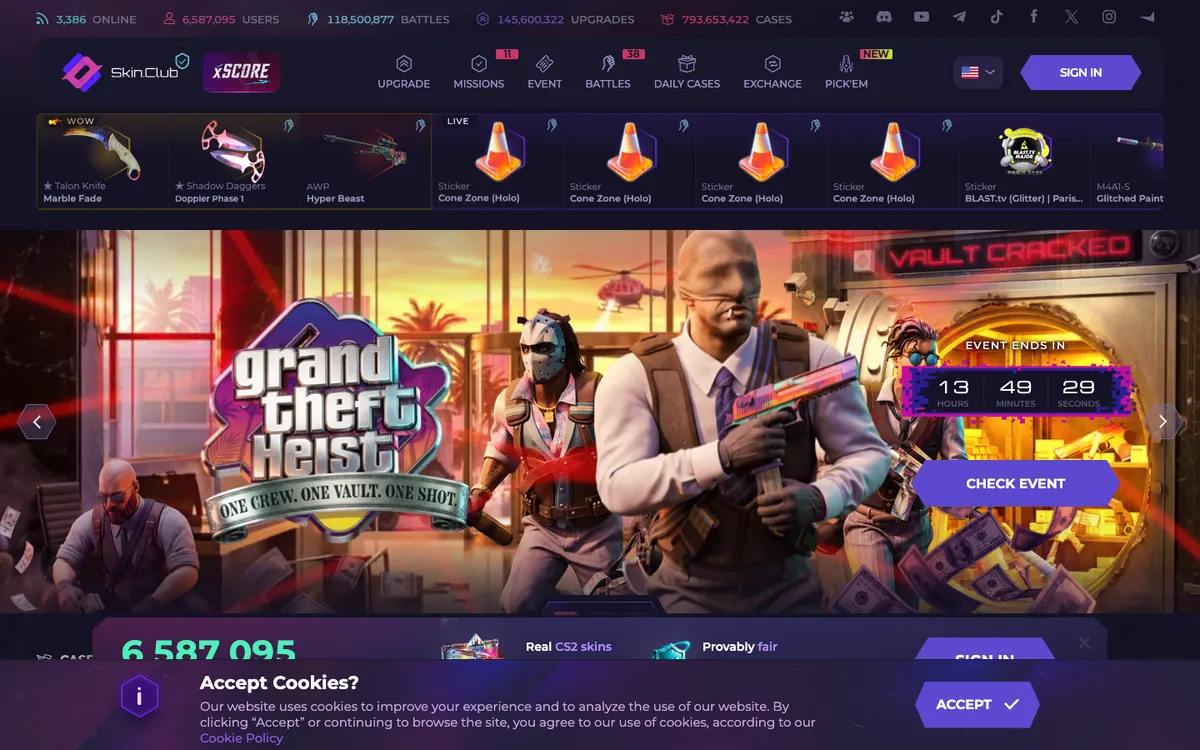
Skin.Club’s official English-language entry point is https://skin.club/en. Its terms identify Steam and Google as sign-in methods. Skin.Club is a CS2 case-opening site with upgrades and case battles, not a general Steam account service. It also states that it is not affiliated with or endorsed by Valve, CS2 or Steam. A Skin.Club account problem and a Steam account problem therefore need different recovery routes.
Type the address yourself or use a bookmark you previously checked. Search advertisements, social messages and copied support links are not proof of identity. Read the actual hostname before entering information, including in a separate browser window. A familiar logo, a padlock or an HTTPS connection does not establish that the page belongs to the organisation you intended to visit. Never ignore a browser certificate warning to continue signing in.
| Destination or identity | What belongs there | What to check |
|---|---|---|
| Skin.Club: skin.club | The documented Steam or Google sign-in entry point and questions about your Skin.Club account. | Start at https://skin.club/en. Similar spelling, an extra word or an unrelated domain is not the same address. |
| Steam sign-in: steamcommunity.com or store.steampowered.com | Steam’s own authentication pages, when a Steam sign-in flow requires them. | Read the full hostname. A Steam logo inside a page is not evidence that Steam is handling your password. |
| Steam recovery: help.steampowered.com | General Steam account recovery and assistance with lost access to your Steam identity. | Navigate independently rather than following a recovery link sent by an unsolicited contact. |
| Google sign-in: accounts.google.com | Google authentication and access to the Google identity you select. | Check which Google account is active, especially in a browser used for work and personal accounts. |
| Email inbox | Provider recovery messages, security alerts and correspondence with support. | An email address is not, by itself, a separate documented Skin.Club password-login method. |
| Skin.Club support: help@skin.club | Skin.Club account questions that remain after you identify the affected provider or service. | Verify the address independently. Never send a password, authenticator code or backup recovery code. |
Check these points before you sign in
The following is general account-security guidance, not a claim about additional Skin.Club requirements. A clean starting point makes ordinary login problems easier to diagnose and helps you notice when a page is asking for something unrelated to authentication. If a sign-in attempt suddenly requires a skin transfer, payment, remote-access software or disclosure of a recovery code, stop rather than trying to complete the request.
- Confirm that you are using a device you control, with an updated browser and no unexplained extensions.
- Open https://skin.club/en directly and inspect the address before selecting a sign-in provider.
- Choose the Steam or Google identity previously associated with your activity; check the account shown by the provider.
- Keep your authenticator available, but do not give its codes to another person or enter them into an unverified page.
- Check regional eligibility before attempting access. A working sign-in button does not establish permission to use the service.
- Avoid signing in on shared or public computers. If you must stop midway, close the authentication flow rather than leaving it unattended.
- Open the official starting pageUse the checked Skin.Club address. If you arrive through a message or an unexpected redirect, close it and navigate independently.
- Select your established providerUse Steam or Google as appropriate for your existing account. Before proceeding, check whether the provider is already signed in to a different identity.
- Inspect the authentication destinationProvider credentials belong only in the provider’s genuine authentication interface. Read any approval request rather than accepting it simply because it follows a familiar-looking button.
- Check the returned accountAfter returning to Skin.Club, confirm that the profile is the one you expected before changing settings or taking any account action. An unfamiliar profile is a reason to pause.
Steam sign-in, Google sign-in and email recovery are different
Skin.Club documents Steam and Google authentication. That does not establish a separate email-and-password login, an email reset form or automatic linking between the providers. If you originally used Steam, knowing the email address attached to that Steam account is not a substitute for recovering the Steam identity. Likewise, a Google account with a similar display name should not be assumed to open the same Skin.Club profile.
For provider-based website authentication generally, the provider checks your identity and returns an authentication result to the service. This is why the location where you enter a password matters. The presence of a Steam or Google button does not make every subsequent prompt trustworthy. Check the destination again if the browser opens another window, displays an embedded-looking form or unexpectedly asks you to repeat sensitive information.
Email recovery belongs to the account being recovered. Use Steam’s recovery service for a lost Steam account and Google’s own recovery process for a lost Google account. Use Skin.Club support when the provider works but the Skin.Club profile remains inaccessible or appears wrong. Provider switching is not a documented account-recovery shortcut, and account merging should not be assumed. If you are unsure which identity you used, gather existing account correspondence before making changes.
Use two-factor protection without confusing it with verification
As general Steam security guidance, enable and maintain Steam Guard protection through Steam’s own controls. Valve’s published explanation describes the Steam Guard Mobile Authenticator as providing two-factor authentication for trade and market confirmations. Protecting your Steam identity matters beyond a website login because the same account may also control an inventory. Protect your Google identity with the security options Google makes available if that is your chosen sign-in provider.
Authenticator codes and recovery codes serve different purposes, but neither belongs in a support conversation. A prompt you initiated on a verified provider page is different from a stranger asking you to read out a code. Treat unexpected approval requests as a warning. Do not approve a login you did not start, even if someone claims approval is necessary to cancel an attack or prevent an account restriction.
A separate Skin.Club authenticator setup and trusted-device policy are not specified in the documented sign-in rules. Do not assume provider protection proves that every Skin.Club account action has an additional confirmation. Identity verification is also a separate subject: Skin.Club may request KYC information under its terms, but an identity document does not replace Steam Guard, and an authenticator code is not a document to submit for KYC.
Understand sessions before assuming you are signed out
A browser session is the state that lets a website recognise an authenticated visitor across page loads. General browser behaviour matters here: closing a tab is not the same as using a logout control, and reopening a browser may restore a previous session. A saved password and an active session are also different things. Removing a saved password does not necessarily end an already authenticated session.
Skin.Club’s documented sign-in information does not specify a session lifetime or a global sign-out procedure. Do not assume there is a device-management screen or that every session ends after inactivity. Use any logout and security controls actually present in your account. On the provider side, review available device, session and connected-service controls through Steam or Google, taking care not to approve an unfamiliar connection.
Changing a provider password should not be treated as proof that every third-party session has ended. If you suspect compromise, secure the provider, use its available session-revocation tools and contact Skin.Club about the affected account. Clearing Skin.Club cookies can remove local browser state, but it does not demonstrate that a session on another device has been invalidated. On a borrowed device, sign out explicitly and avoid leaving credentials saved.
Recognise phishing and account-recovery scams
Phishing can imitate a login page, a provider approval window or a support conversation. The attack may begin before you reach the website: a message can claim that your account needs verification, that a trade failed or that support has already opened a recovery case. Treat the requested action as more important than the sender’s profile picture, display name or apparent knowledge of your public inventory.
- A contact asks for your password, authenticator code, recovery code or access to your email inbox.
- A page or message asks you to transfer skins to prove ownership, repair authentication or protect an inventory.
- Someone requests screen-sharing or remote-control software so they can complete recovery for you.
- A supposed agent asks you to create or disclose a Steam Web API key as part of fixing a login.
- A QR-code approval is presented without a clear, independently checked explanation of the session it will authorise.
- A recovery message directs you away from the verified provider or Skin.Club support route and discourages independent checks.
These are general scam warnings, not descriptions of Skin.Club’s recovery procedure. If a message claims to come from help@skin.club, remember that a displayed sender name is not conclusive. Start a fresh enquiry using the independently checked address rather than continuing through suspicious links. Do not pay a self-described recovery specialist who promises to retrieve an account or reverse a completed item transfer.
If you entered details on a suspicious page
Treat an exposed password or an approval you did not understand as a security incident, not merely a failed login. Stop interacting with the page. If the device may contain malicious software or an untrusted extension, use another trusted device for recovery. The following sequence is general incident-response guidance; it is not a promise that Skin.Club or Steam can recover items, reverse activity or restore access.
- Secure the affected provider and emailNavigate independently to Steam or Google recovery. Change exposed credentials through genuine provider controls, and secure the recovery inbox if it may also be compromised.
- Review sessions and authentication settingsUse the provider’s available tools to inspect devices, end unfamiliar sessions and review connected access. Check for unexpected changes to recovery details or authentication methods.
- Inspect pending account activityReview Steam trade offers and confirmations without accepting anything unfamiliar. A trade request is not made safe by a claim that it is part of recovery.
- Preserve useful evidenceSave the suspicious address, approximate time, message content and relevant screenshots. Do not publish credentials, codes, private recovery links or identity documents.
- Notify the appropriate support serviceUse Steam Support for Steam account access and help@skin.club for the Skin.Club account. Describe what was exposed and what you have already secured without repeating the secret information.
Troubleshoot the point where sign-in fails
Identify the last step that worked before changing browser settings. Can you reach Skin.Club? Can the provider authenticate you? Do you return to the expected profile? This separates a local browser problem from provider recovery or an account restriction. The checks below are general troubleshooting suggestions, not published Skin.Club error-code explanations or guarantees that access will be restored.
| What happens | Safe first checks | When to stop or escalate |
|---|---|---|
| The sign-in window does not open | Check whether the browser blocked a pop-up or redirect. Inspect permissions for the verified site rather than disabling protection everywhere. | Do not install a login extension or download software offered by an unfamiliar page. |
| Steam or Google rejects authentication | Check the selected provider identity and use that provider’s genuine recovery tools if credentials or authenticator access are missing. | Skin.Club support is not a substitute for recovering the underlying provider account. |
| Authentication returns to the login screen | Close duplicate attempts. Consider whether cookies, site-data restrictions or an extension are interrupting the return flow. | If it persists in a clean, updated browser, record the stage and error text for support. |
| You land in an unfamiliar profile | Check whether the browser authenticated a different Steam or Google account. Sign out before trying the intended identity. | Do not deposit, change account details or assume different provider accounts will merge. |
| An authenticator code is rejected | Confirm that you are using the correct provider and its current authentication prompt. Follow the provider’s troubleshooting instructions. | Do not disable account protection or give codes to a person offering to synchronise them. |
| The page reports a regional or account restriction | Read the message and check the applicable terms. Preserve a screenshot without exposing private information. | Contact support if clarification is needed. Do not attempt to bypass the restriction. |
| Login works, but an item or balance is unavailable | Separate authentication from payment holds, withdrawal availability and verification requirements. | Send support the relevant activity reference rather than repeatedly resetting provider access. |
Change one browser condition at a time. For example, inspect site-specific pop-up settings before clearing all browsing data. If you clear cookies for Skin.Club, expect local sign-in state to be removed; that action is not account recovery. A private browsing window or clean browser profile can help identify an extension or stored-data conflict, but private browsing does not make a phishing page trustworthy or change regional eligibility.
Avoid rapidly repeating the same attempt without learning anything new. Keep the exact error wording and note whether it appeared on Skin.Club or the provider’s page. If the problem affects the provider independently of Skin.Club, resolve that first. If the provider works but the return to Skin.Club consistently fails, explain that distinction when contacting support. Do not claim an outage based only on your own browser result.
Do not confuse login with Steam trading or a payment hold
A successful login establishes account access; it does not establish that a particular item can be delivered. Skin.Club says its trades are carried out automatically by Steam bots. Its published withdrawal instructions describe selecting items in the profile, choosing Take and accepting a Steam trade offer. None of that makes an unsolicited trade offer part of the login process. Check the transaction you initiated and the actual items on both sides before confirming anything.
As general Steam context, trade offers specify the items for each side. A Steam trade URL helps route offers; it is not an authentication code and should not be confused with a password or API key. Steam trade holds concern item delivery: Valve describes a hold as time during which items are retained before delivery, allowing compromised-account owners to cancel fraudulent trades. That is a different issue from being unable to authenticate.
Skin.Club’s FAQ separately says skin deposits can be on hold for 8 days, visible under Profile > Payments > On Hold. Its terms also describe withdrawal availability restrictions, including limitations after a reversal leaves a negative balance. These are documented account or transaction conditions, not proof that your password is wrong. For the next diagnostic step, use the deposit and withdrawal guide or the trade-safety guide, depending on the symptom.
Check eligibility and understand verification requests
Skin.Club’s minimum age is 20 or the applicable legal age of majority where you live. Its chance-based case opening, upgrades and battles are 20+ activities and carry a house edge. Account access does not remove those risks or establish that use is lawful in your location. Check current regional eligibility and local law; a page loading successfully is not evidence of permission.
The terms exclude residents of Washington and Nevada in the United States and allow the operator to limit functionality geographically. Those named exclusions are not a complete assurance of availability everywhere else. Skin.Club also prohibits VPNs and proxies. Do not use location-changing tools, another person’s identity or another person’s payment credentials to address an access restriction. If an eligibility message is unclear, ask support for clarification rather than attempting another route around it.
Skin.Club may trigger KYC because of suspicious activity, a transaction or a payment method. Its terms list possible requests including name, government ID, a selfie with ID, proof of payment, proof of address and source of funds. They state that an account is permanently blocked if KYC establishes residence in a restricted country. Verify any document request through the official service before submitting sensitive information; do not send documents to a social contact claiming to handle recovery.
Give support a useful login report, not your credentials
Skin.Club publishes help@skin.club as its support email, and its contacts page states that support operates 24/7. That describes availability, not a guaranteed response or recovery time. If you cannot authenticate, email lets you describe the problem without relying on access to the affected profile. For gambling-related support in New Zealand, contact the Gambling Helpline on 0800 654 655.
- The sign-in provider you used and a non-secret account identifier or profile reference, if you have one.
- The approximate time of the failure, your time zone and the exact error message.
- Whether the failure happens before provider authentication, during approval or after returning to Skin.Club.
- Your browser and device type, plus the safe troubleshooting checks already completed.
- A screenshot with passwords, codes, payment details and private recovery information removed.
- A clear statement if you suspect phishing, an unfamiliar session or an unexpected change to the account.
Keep the report focused on the affected service. If Steam itself is inaccessible, say so rather than describing every failed attempt as a Skin.Club error. Never include full credentials to prove ownership. If support needs additional identity or payment evidence, establish the genuine submission route first and provide only what is requested through that route. Do not post the evidence publicly while seeking help from other users.
Quick decision checklist before your next attempt
- Wrong or uncertain address: close the page and open https://skin.club/en independently.
- Lost Steam or Google access: recover that provider account through its own service.
- Provider works but Skin.Club fails: record the return-stage error and contact help@skin.club.
- Unexpected profile: stop account activity and check which provider identity was selected.
- Suspicious code request, QR approval or trade: stop and follow the security-incident steps.
- Regional restriction or verification request: check the terms and genuine support route; do not bypass restrictions.
- Login succeeds but a transaction is held: investigate the payment or trade condition separately.
Skin.Club login FAQ
No matching questions found.
How do I log in to Skin.Club with Steam?
Can I sign in to Skin.Club with Google or email?
Why does Skin.Club keep sending me back to the login page?
How do I recover my account if I lost Steam Guard access?
Does signing out of Steam also sign me out of Skin.Club?
Should support ask for my password or an authenticator code?
Can I use a VPN if Skin.Club login is blocked?
Who should I contact when Skin.Club login is not working?
Explore Skin.Club
Links to Skin.Club's official site are independent and earn no commission. →
This guide is independent and informational. Check Skin.Club's official site for current terms.